SpotOn Connection Guide
Last updated: August 24, 2026
Connecting your SpotOn POS system to Maple lets your AI voice agent access your menu data, take phone orders, and send them directly into SpotOn — no manual order entry required. This guide walks through the 7-step connection process, plus what to expect afterward and how to resolve common connection issues.
Supported POS versions
Maple connects to both of SpotOn's point-of-sale systems:
Restaurant POS (RPOS)
Express
Supported payment systems
TSYS
Worldpay
Part 1: How to connect
Pre-requisite: You must have a SpotOn Dashboard user account for each location you want to onboard with Maple. Have your SpotOn Dashboard credentials ready before getting started.
Learn more: How to create a SpotOn Dashboard user >>
Log in to your Maple dashboard.
In the left sidebar, click My Orders.
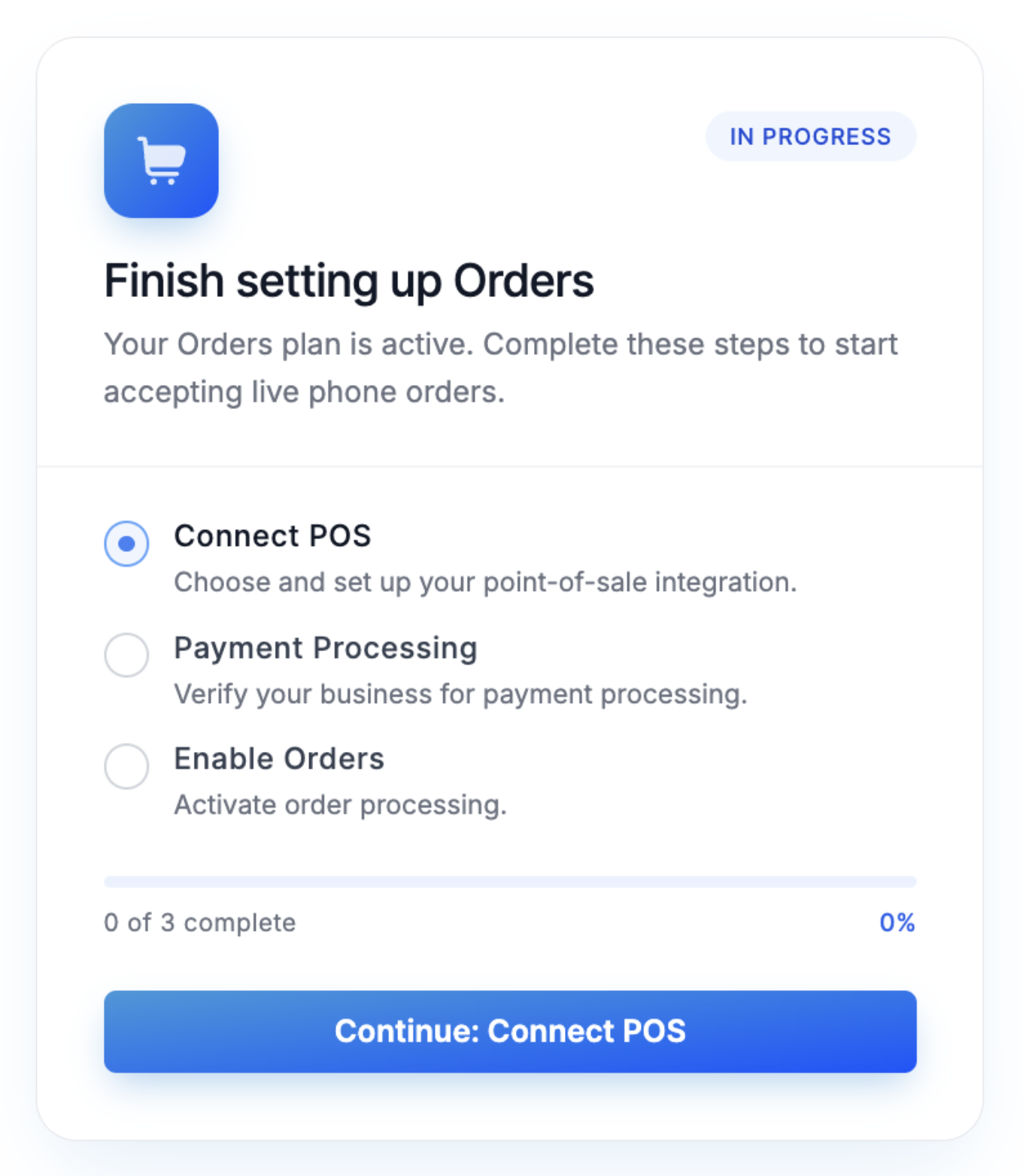
On the Finish setting up Orders card, click Continue: Connect POS.
On Select Your POS System, choose SpotOn, then click Continue With SpotOn.
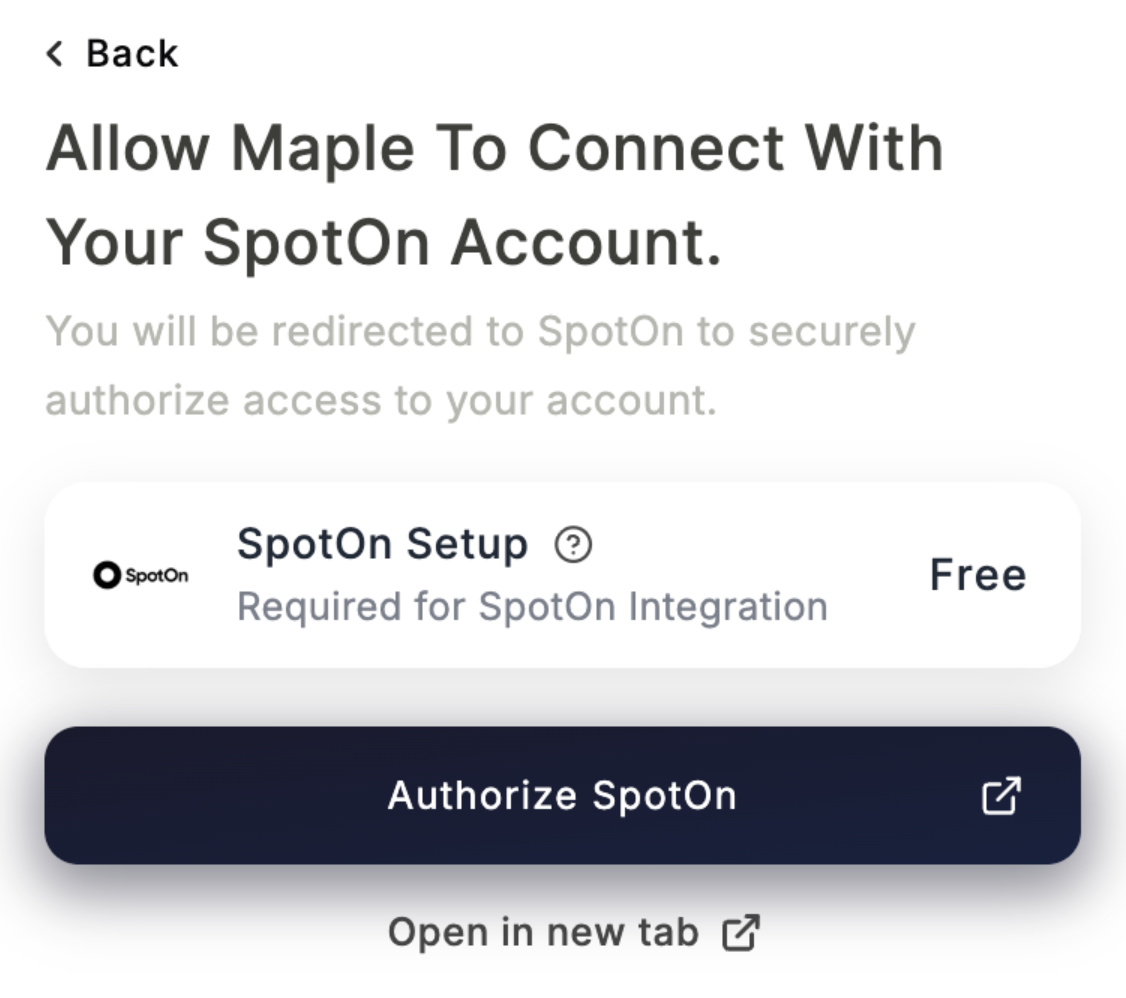
Click Authorize SpotOn. Sign in with your SpotOn Dashboard credentials and allow access when it asks for permission. On Choose which SpotOn menu(s) to sync, select the one menu you want to connect to Maple, then click Continue.
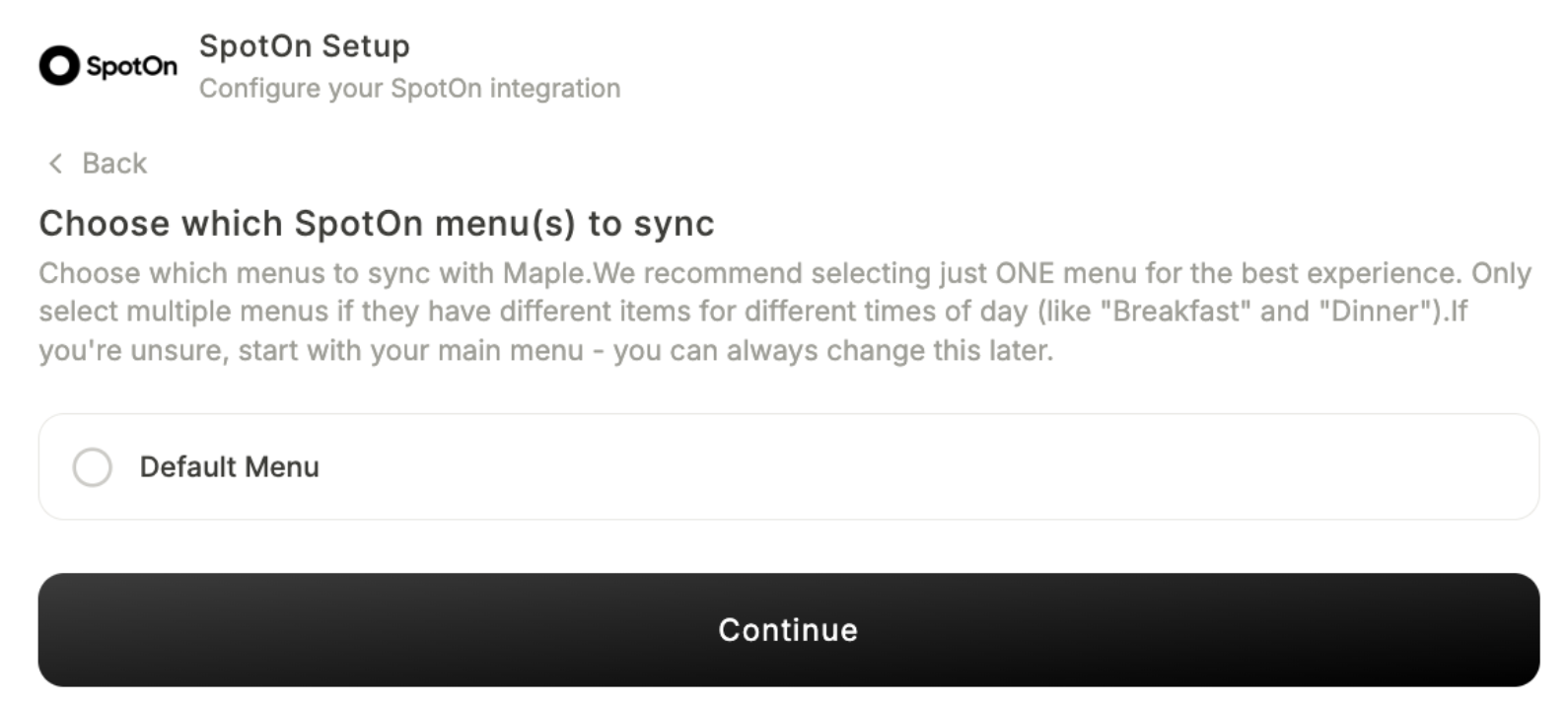
Your menu starts syncing automatically. Wait 5–10 minutes, then open Menus in the sidebar and check that your items and prices are correct.
Once SpotOn shows Connected and your menus are selected, let your Maple onboarding specialist know (or email hello@maple.inc) that activation is done — we'll verify that payment processing is completed, help you hit Confirm Enable Orders, and run a live test call with you!
Part 2: After you connect
Payments: orders come in prepaid
Maple takes payment through a secure pay-by-link. This means all Maple orders are prepaid and will appear inside SpotOn as "closed" orders.
Note: Pay-at-pickup orders are not supported at this time due to a SpotOn limitation.
Menu sync: update your menu in SpotOn
New items, modifiers, and out-of-stock updates automatically sync with Maple after the SpotOn menu is updated on the POS.
Delivery: a full address is required
SpotOn requires the street, city, state, and ZIP code. Delivery orders with an incomplete address will be rejected.
Part 3: Troubleshooting
Problem | What to do |
|---|---|
"I clicked Continue With SpotOn but nothing happened." | A popup blocker stopped the SpotOn window from opening. Allow popups for Maple in your browser, then click Continue With SpotOn again. |
"It says credentials failed." | Sign in using the login information for your SpotOn Dashboard account. This is different from the login information you use for the SpotOn POS. |
"After logging in with my SpotOn Dashboard account, my location is not listed." | The email address used to log in does not have a corresponding SpotOn Dashboard user for that location. A Dashboard user will need to be created for the location before it will appear in the list. View guide >> |
"My menu isn't showing, or items are missing." | This is most likely due to the menu configuration on your POS. Please contact SpotOn Support for assistance. |
"It says Disconnected / needs re-auth." | Reconnect the same way: My Orders → Continue: Connect POS → SpotOn → Continue With SpotOn. |
Need help?
Email us your location name and where the connection stops, and we'll help you over the finish line! hello@maple.inc